Salesforce
Salesforce Requirements
- A Scarf account with an Organization set-up and an active Premium Subscription.
- A Salesforce account with API access; API access is included with Force.com, Enterprise, Developer, Performance, and Unlimited Editions. If you are on a different Salesforce plan, you may be required to purchase additional features to enable API access.
- It is suggested that a dedicated Salesforce integration user be created (Salesforce documentation). However, any user account that has the necessary Salesforce permissions can be used to initiate the connection.
Required Permissions
- Scarf:
- Owner or Admin Permissions
- Salesforce:
- Permission to read the org ID in Salesforce
- Permission to “view setup and configuration”
- Read/write access to standard objects
- Optional: Permissions to Create Fields on Account Records – this permission is not required for the CRM sync to function, but Scarf specific Fields must be created in the CRM instance for full metadata to be written.
Implementation Process
Connection and Authentication
- Login to Scarf as a user with Owner or Admin permissions.
- Navigate to
Organization Settings->Integrations.

- Select
Connect CRM Instance, confirm you want to sync companies and clickFinish linking CRM.

- Click
Salesforcefrom theSelect integrationmenu.

- Review the presented data permissions, and click
Next.

- When prompted, enter your Salesforce subdomain, and click
Next.
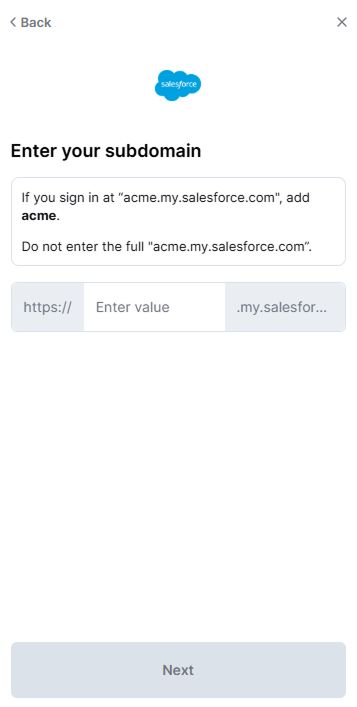
- You will now be prompted to log in to your Salesforce account.

- Once you enter your Salesforce credentials, Scarf will establish a connection with your Salesforce instance.

Synchronization Frequency
Scarf syncs with your CRM daily. Upstream CRMs enforce per-minute rate limits per connected instance, so CRM sync jobs can take several hours to complete each day. Because of this, we do not recommend relying on any specific account being synced at a particular time on a given day. Manual Company matches are queued for the next daily sync cycle.
Configuring the Connection
Once the CRM connection has been initialized, the Integrations menu will add three configuration options:
Enable Scarf to connect Insights to this CRM Toggling this to off will temporarily disable the CRM integration. While off, no reading or writing will be attempted until the toggle is switched back on.
Auto-match to known Accounts from Scarf With the integration enabled, you have the option to set Scarf to use text pattern matching to pair existing CRM Accounts with surfaced Scarf Companies. If the setting is off, then all mapping will be performed manually.
Auto-sync
When enabled, Auto-Sync ensures that any Scarf Company matched to a CRM Account is automatically included in the next sync cycle. While off, matched companies will not be included in the sync unless manually triggered.
Automatically create new Accounts in your CRM You also have the option to set Scarf to attempt to create a new Account record in your CRM when the sync process encounters a Company without a match in the CRM. This will include historical matches as well as any newly surfaced companies.

NOTE: By default, all options will be turned on except for Auto-Sync, which will be off. Since Auto-Sync automatically creates records, it is disabled by default to prevent unintended data updates. Users can enable it manually once they have reviewed their setup.
Scarf Field Configuration
The basic CRM connection allows you to pair Scarf Surfaced Companies with Account records in Salesforce, and optionally to create new Account records when Company Matches are surfaced. In addition to account records, Scarf will attempt to publish metrics to the CRM Account record if a matching Field is found on the account. If no matching Fields are found on an Account Object, Scarf will not update the record. The Fields Scarf will attempt to publish are enumerated here:
| Field Label (suggested) | Field Name (required) | Field Type | Description |
|---|---|---|---|
| Scarf Company | Scarf_company_name__c | string | Company name as determined by Scarf Enrichment |
| Scarf Domain | Scarf_company_domain__c | string | Primary internet domain of the company |
| Scarf First Seen | Scarf_first_seen__c | date | Date of the first event Scarf observed for this company |
| Scarf Last Seen | Scarf_last_seen__c | date | Date of the most recent event Scarf observed for this company |
| Scarf Last Updated | Scarf_last_updated__c | datetime | Timestamp of the most recent Scarf sync update written for this company record. Use this to identify stale Salesforce records, and note that it changes when Scarf writes refreshed company metadata, not just when event totals change. |
| Scarf Funnel Stage | Scarf_funnel_stage__c | string | Current adoption funnel stage of the company |
| Scarf Total Events | Scarf_total_events_last_30_days__c | number | Total observed events in the last 30 days |
| Scarf Total Uniques | Scarf_total_unique_sources_last_30_days__c | number | Unique observed event sources (endpoints) in the last 30 days |
| Scarf Events MoM | Scarf_total_events_MoM__c | number | Change in total events over the previous month |
| Scarf Events WoW | Scarf_total_events_WoW__c | number | Change in total events over the previous week |
| Scarf Sources MoM | Scarf_total_unique_sources_MoM__c | number | Change in unique sources over the previous month |
| Scarf Sources WoW | Scarf_total_unique_sources_WoW__c | number | Change in unique sources over the previous week |
Per-package and per-pixel breakdown
The fields above total a company's activity across everything you publish. The fields below break that total down by individual package and by individual tracking pixel, so you can see which of your packages an account is downloading and which of your pages it is viewing.
Packages and pixels are reported separately and ranked independently, each by total events over the last 30 days. Slots are filled only as far as an account's activity reaches: a company that downloaded two packages fills the first two package slots and leaves the third empty.
| Field Label (suggested) | Field Name (required) | Field Type | Description |
|---|---|---|---|
| Scarf Top Package 1 | Scarf_top_package_1_name__c | string | Package with the most observed events in the last 30 days |
| Scarf Top Package 1 Events | Scarf_top_package_1_events__c | number | Observed events for that package in the last 30 days |
| Scarf Top Package 1 Sources | Scarf_top_package_1_unique_sources__c | number | Unique observed event sources for that package in the last 30 days |
| Scarf Top Package 2 | Scarf_top_package_2_name__c | string | Package with the second most observed events in the last 30 days |
| Scarf Top Package 2 Events | Scarf_top_package_2_events__c | number | Observed events for that package in the last 30 days |
| Scarf Top Package 2 Sources | Scarf_top_package_2_unique_sources__c | number | Unique observed event sources for that package in the last 30 days |
| Scarf Top Package 3 | Scarf_top_package_3_name__c | string | Package with the third most observed events in the last 30 days |
| Scarf Top Package 3 Events | Scarf_top_package_3_events__c | number | Observed events for that package in the last 30 days |
| Scarf Top Package 3 Sources | Scarf_top_package_3_unique_sources__c | number | Unique observed event sources for that package in the last 30 days |
| Scarf Package Breakdown | Scarf_package_breakdown__c | string | Every package for this company, ordered by events, as name: N events, M sources; ... |
| Scarf Top Pixel 1 | Scarf_top_pixel_1_name__c | string | Tracking pixel with the most observed events in the last 30 days |
| Scarf Top Pixel 1 Events | Scarf_top_pixel_1_events__c | number | Observed events for that pixel in the last 30 days |
| Scarf Top Pixel 1 Sources | Scarf_top_pixel_1_unique_sources__c | number | Unique observed event sources for that pixel in the last 30 days |
| Scarf Top Pixel 2 | Scarf_top_pixel_2_name__c | string | Tracking pixel with the second most observed events in the last 30 days |
| Scarf Top Pixel 2 Events | Scarf_top_pixel_2_events__c | number | Observed events for that pixel in the last 30 days |
| Scarf Top Pixel 2 Sources | Scarf_top_pixel_2_unique_sources__c | number | Unique observed event sources for that pixel in the last 30 days |
| Scarf Top Pixel 3 | Scarf_top_pixel_3_name__c | string | Tracking pixel with the third most observed events in the last 30 days |
| Scarf Top Pixel 3 Events | Scarf_top_pixel_3_events__c | number | Observed events for that pixel in the last 30 days |
| Scarf Top Pixel 3 Sources | Scarf_top_pixel_3_unique_sources__c | number | Unique observed event sources for that pixel in the last 30 days |
| Scarf Pixel Breakdown | Scarf_pixel_breakdown__c | string | Every tracking pixel for this company, ordered by events, as name: N events, M sources; ... |
Each field is independent, so create only the ones you intend to use:
- The numbered slots are ordinary Salesforce fields, so they can be filtered, reported on, and used in list views. Most companies engage with only one or two packages, so the first slot alone often carries the signal you want.
- The two breakdown fields hold the complete list rather than only the top three, which makes them suited to reading on the account page rather than to reporting. Create them as Text Area (Long), because the value can exceed the 255 character limit of a
Textfield. - Create pixel fields only if you publish tracking pixels, and package fields only if you publish packages. A field you have not created is skipped entirely, so partial setups are fine.
- A field you have created but for which a company has no activity is cleared on each sync rather than left at its previous value. This keeps a slot from showing last month's package after a company stops using it, so avoid writing your own data into these fields.
For a detailed guide on how to make the most of your Salesforce integration, check out our Salesforce Integration Playbook. It walks you through configuring the connection, matching and syncing companies.